Purelymail with ImprovMX SMTP
Use ImprovMX SMTP to send outgoing mail through your own custom domain.
Note: You must be a paid subscriber to use ImprovMX SMTP.
Prerequisites:
- Create an SMTP Credential in the ImprovMX Dashboard
- Adding DKIM records in DNS
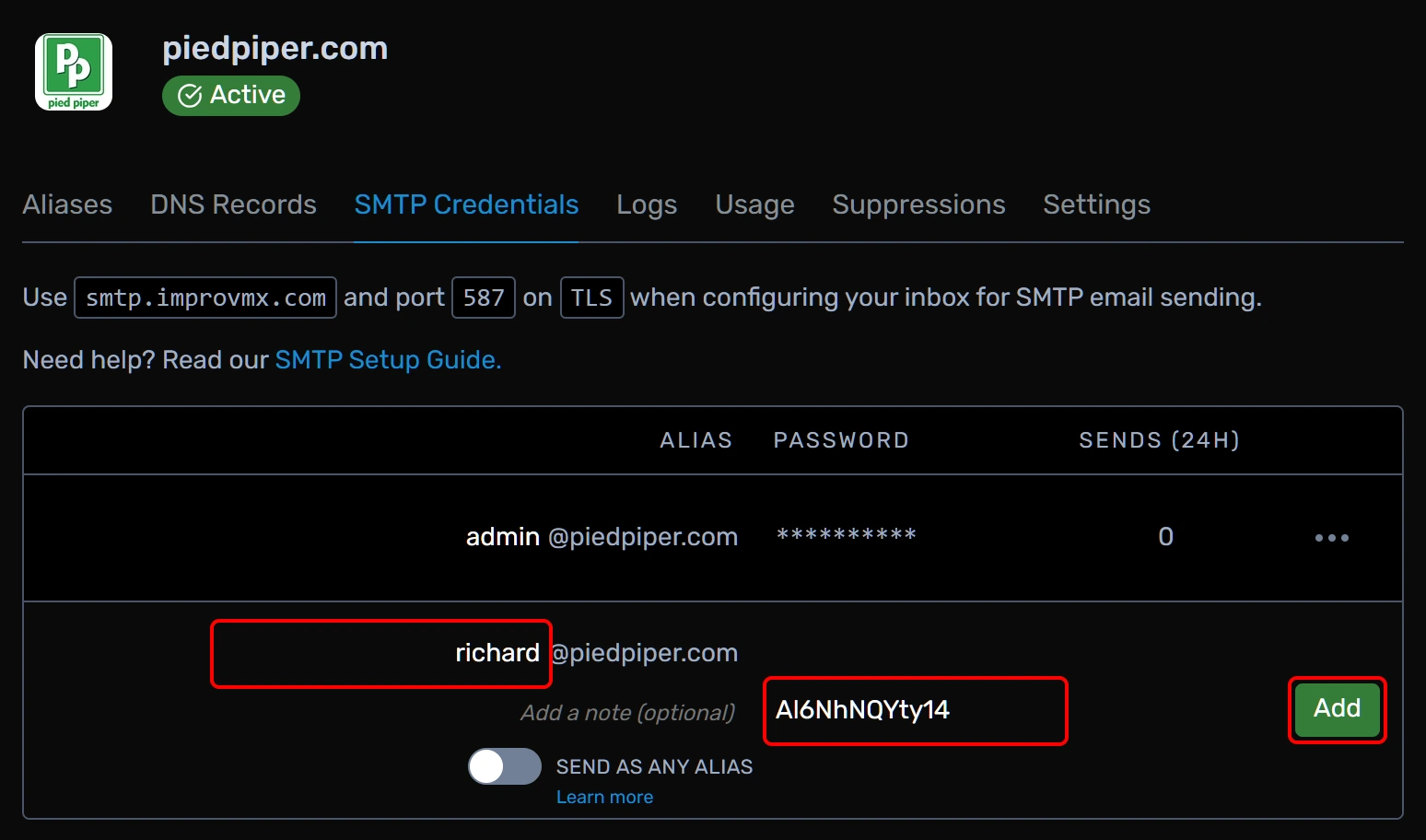
1. Grab your ImprovMX SMTP credential.
In the ImprovMX dashboard, click the settings cogwheel ⚙ next to your domain → SMTP Credentials, then add a credential for the alias you want to send as.
Write both halves down, you'll paste them into Purelymail in the next step:
-
The username is the full alias, i.e.
[email protected] - The password is the one you set here

2. Point Purelymail at ImprovMX.
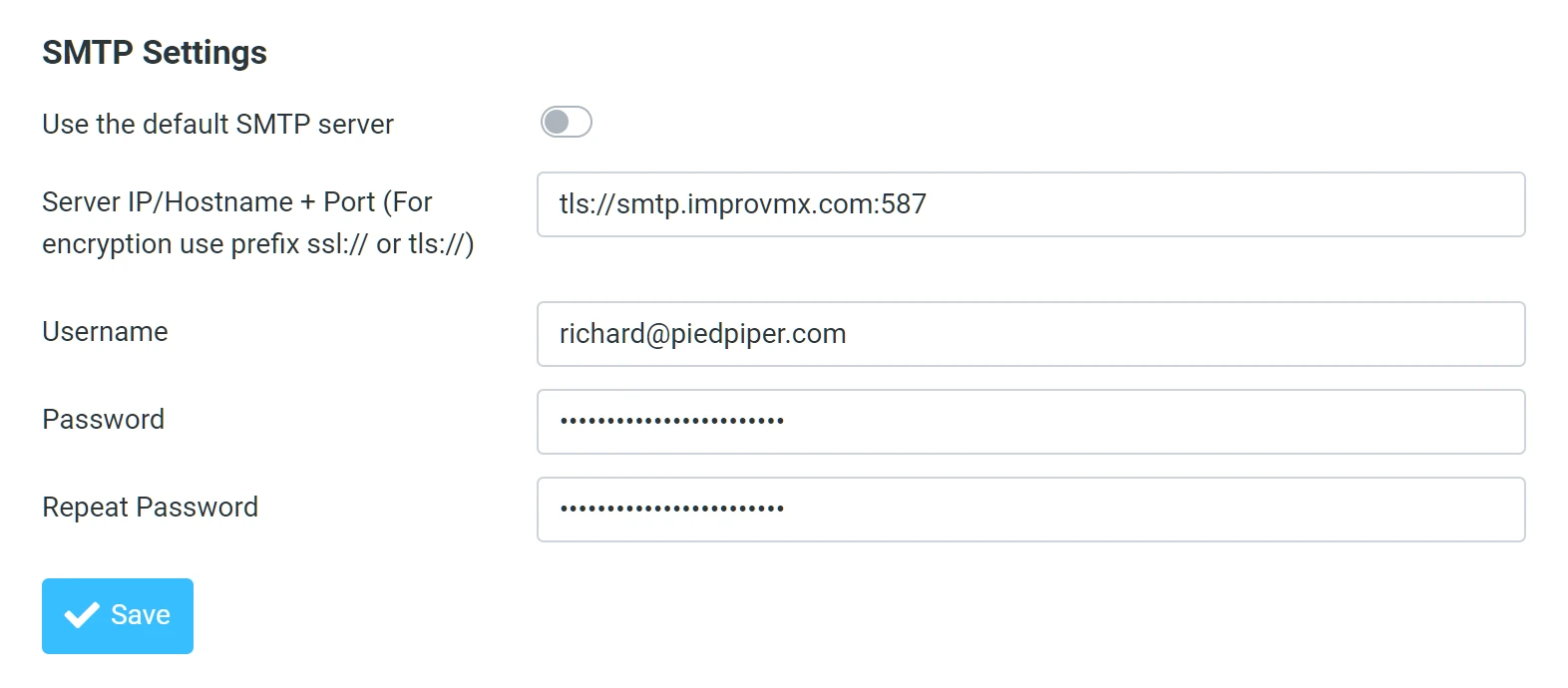
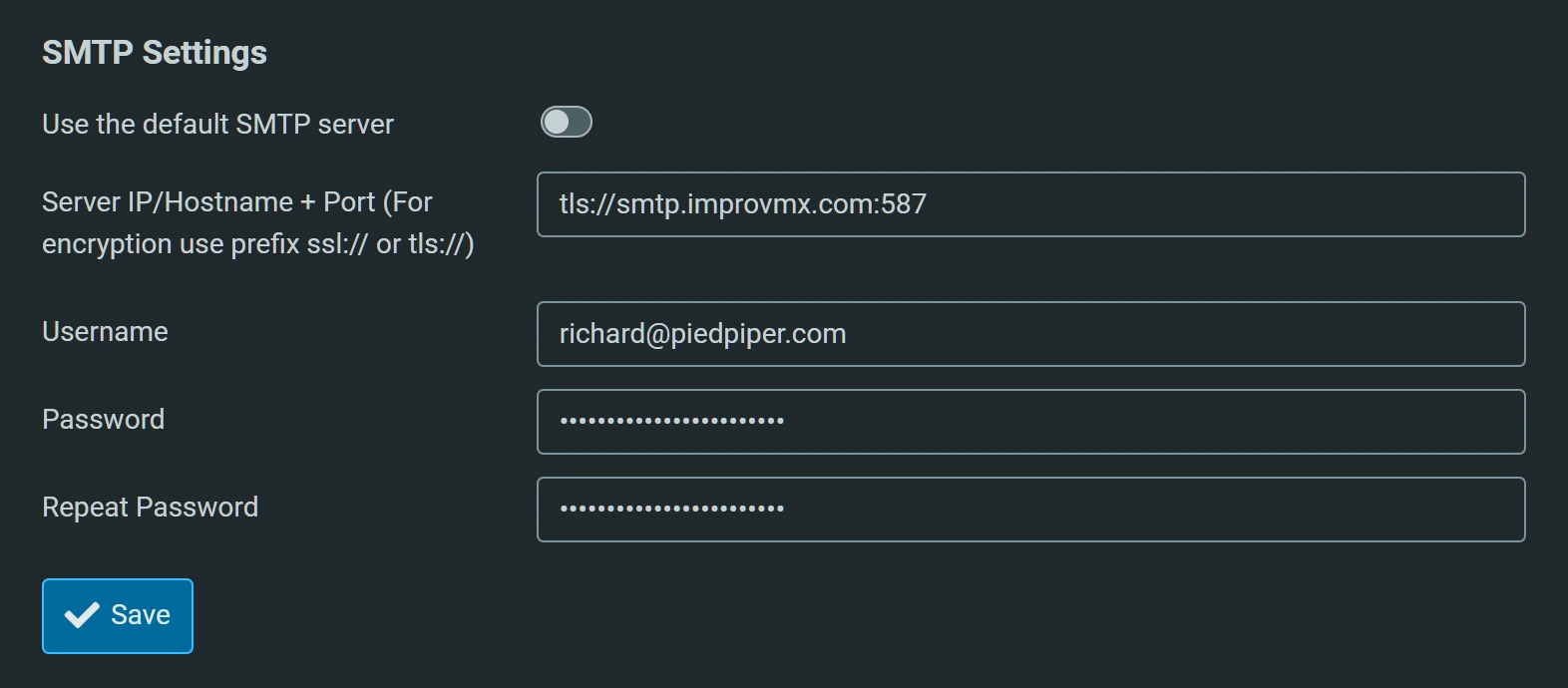
In Purelymail webmail, go to Settings → Identities, open your identity, find the SMTP Settings section and turn off Use the default SMTP server. That reveals the fields below, which you fill in like so:
- Server IP/Hostname + Port:
tls://smtp.improvmx.com:587 - Username: your alias, i.e.
[email protected] - Password: the ImprovMX SMTP credential password from step 1
Click Save.
Mind the prefix
Purelymail packs the hostname, the port and the encryption into that one
field, so a bare smtp.improvmx.com won't connect. Use one of these:
| Value | Port | Encryption |
|---|---|---|
tls://smtp.improvmx.com:587 | 587 | STARTTLS |
ssl://smtp.improvmx.com:465 | 465 | SSL/TLS |
Either works. Start with 587, fall back to 465 if it gives you trouble.
3. Send a test email.
Compose a message in Purelymail from your alias to another address you own, and check that it lands.
Repeat step 1 and 2 for any other alias you want to send from. If something doesn't line up, shoot us a message and we'll get back to you promptly.