Thunderbird + Gmail: Sync and Send
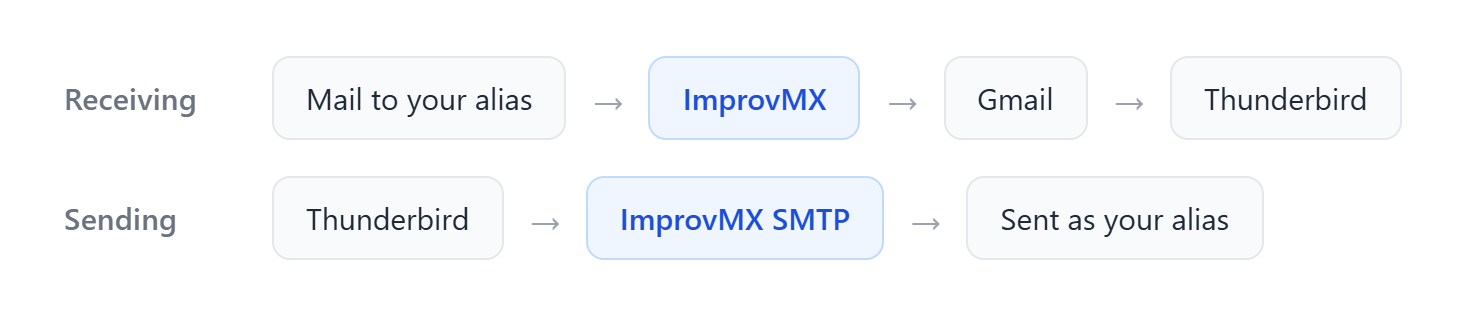
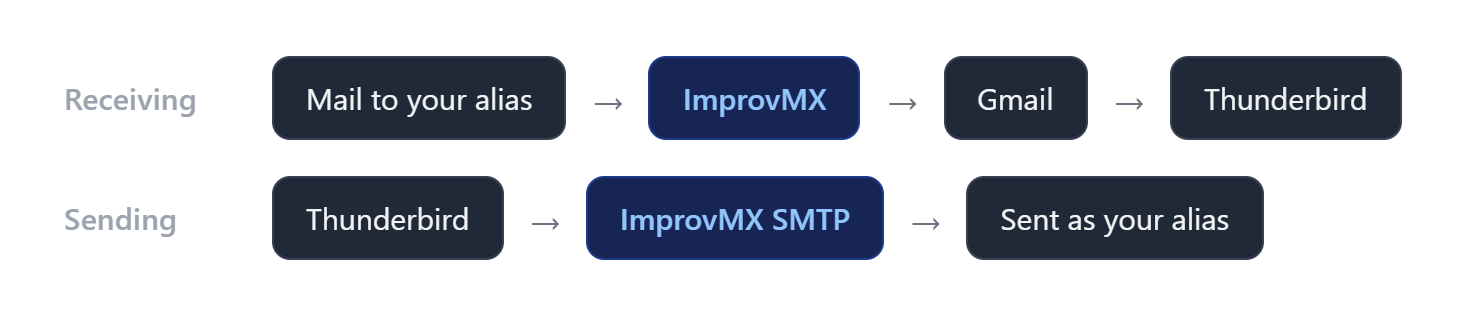
Two separate flows. Receiving: ImprovMX forwards your custom-domain
aliases into Gmail, and Gmail syncs down to Thunderbird over IMAP. Sending: Thunderbird sends out through ImprovMX SMTP — an outbound server you add with
your ImprovMX credential, so you can send as either your @gmail.com address or a custom-domain alias like
[email protected].
Two parts: Part 1 — sync Gmail into Thunderbird, then Part 2 — send as your aliases.
Note: Sending (Part 2) requires a premium or business plan.
Part 1 — Get Gmail into Thunderbird
Add your Gmail account to Thunderbird. Sign in with Google (OAuth) if you can — it's simpler and stores no password.
Option A — Sign in with Google (OAuth, recommended)
-
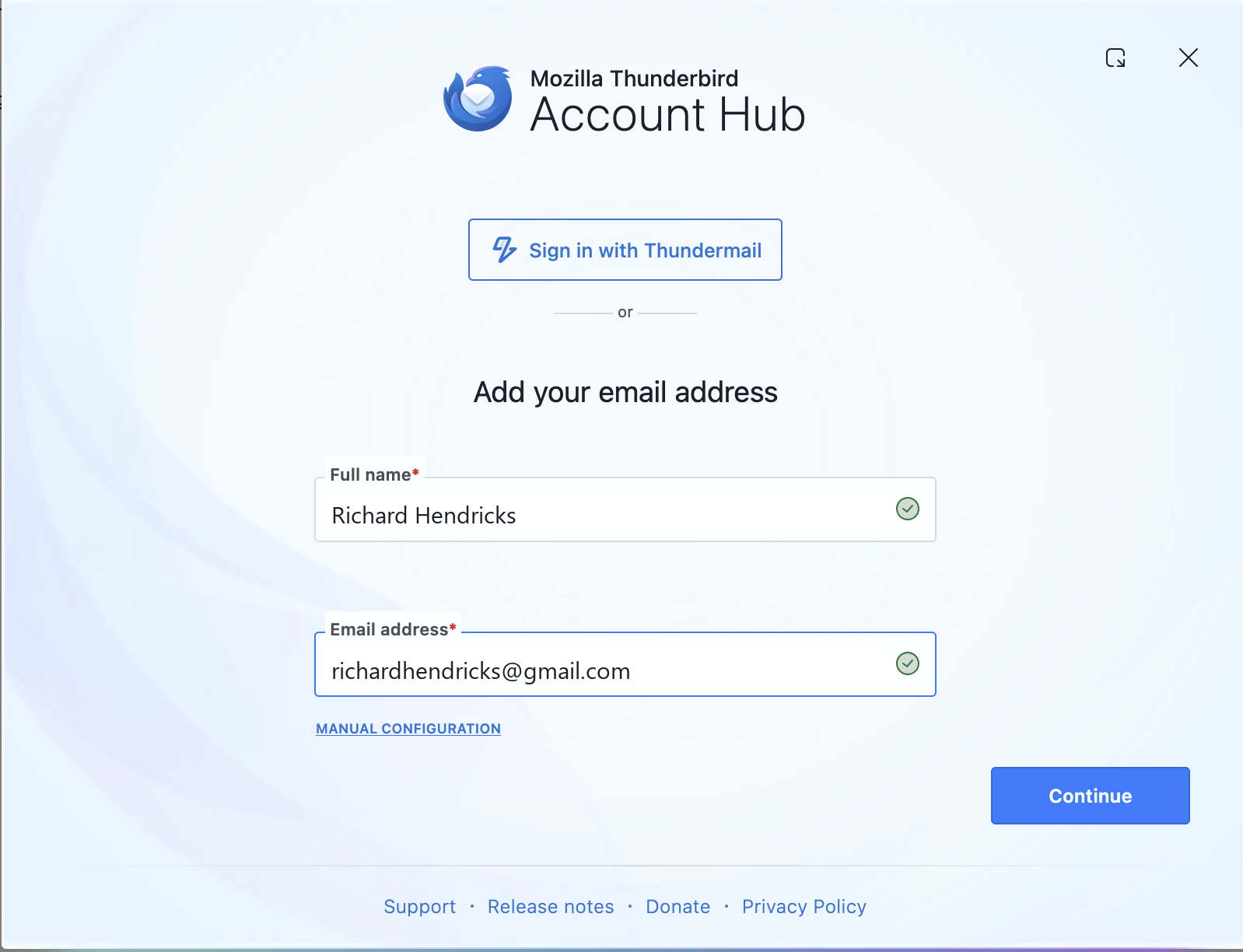
In Thunderbird's Account Hub, enter your name and
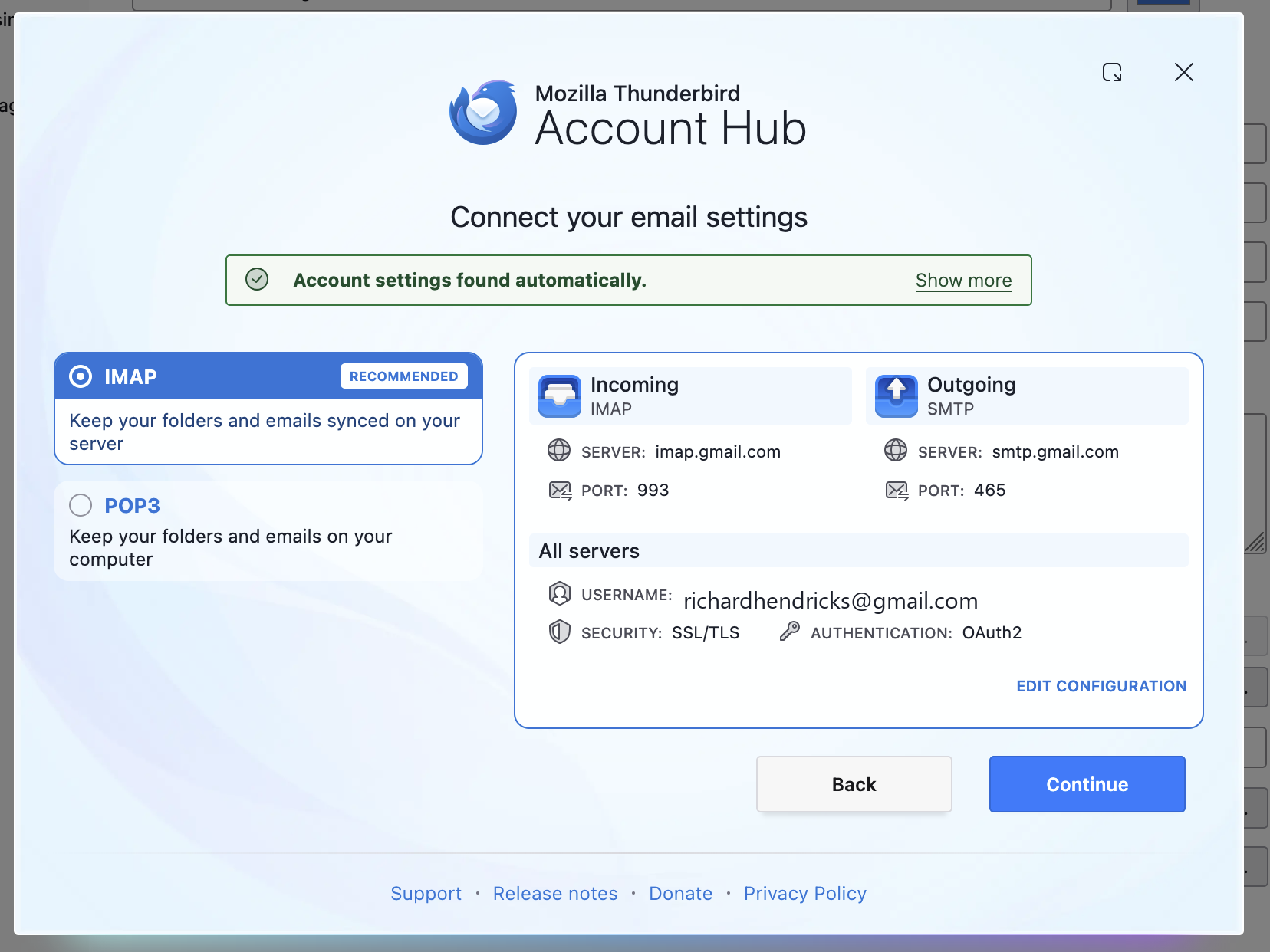
@gmail.comaddress, then click Continue. - Thunderbird finds Gmail's settings automatically — leave it on IMAP (recommended) and click Continue.
- A Google sign-in window opens. Sign in, approve access, and you're connected.
Option B — App Password (fallback)
Use this only if OAuth isn't working. App passwords require 2-Step Verification on your Google account.
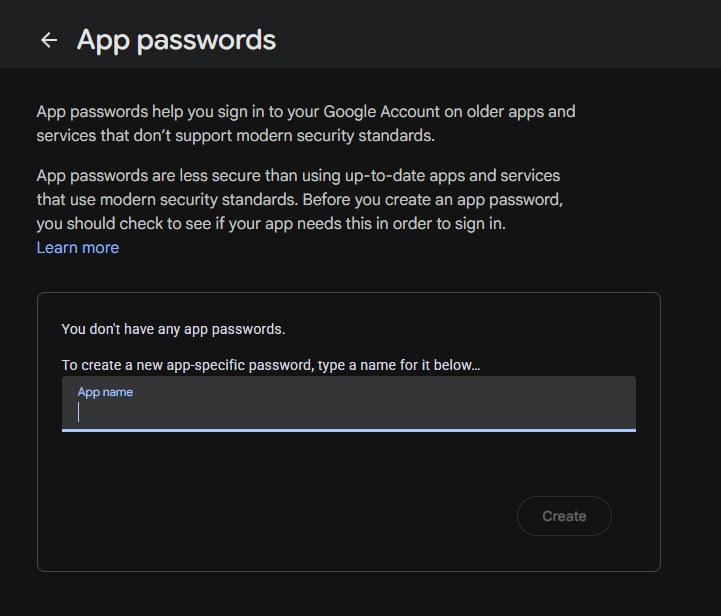
- Go to myaccount.google.com/apppasswords, name it (like "Thunderbird"), and click Create. Copy the 16-character password — it's only shown once.
- Add the account in Thunderbird the same way, but choose Normal password and paste the app password instead of your Gmail password.
Mail's arriving and syncing — Part 1 done. Now wire up sending.
Part 2 — Send as your aliases
Head to our Thunderbird SMTP guide to add ImprovMX as an outgoing server and set up each alias, so you can pick any of them in the "From" line when you compose.
Questions or a step that didn't line up? Shoot us a message and we'll help you out.