OVH DNS Setup For ImprovMX
1. View and copy your MX & SPF records
Where to find your MX & SPF records in the ImprovMX dashboard : Viewing MX & SPF records
You will be required to copy them into OVH.
2. Add MX records
In OVHcloud, navigate to the Web Cloud page. Select "Domain names". Locate your domain and click on it.
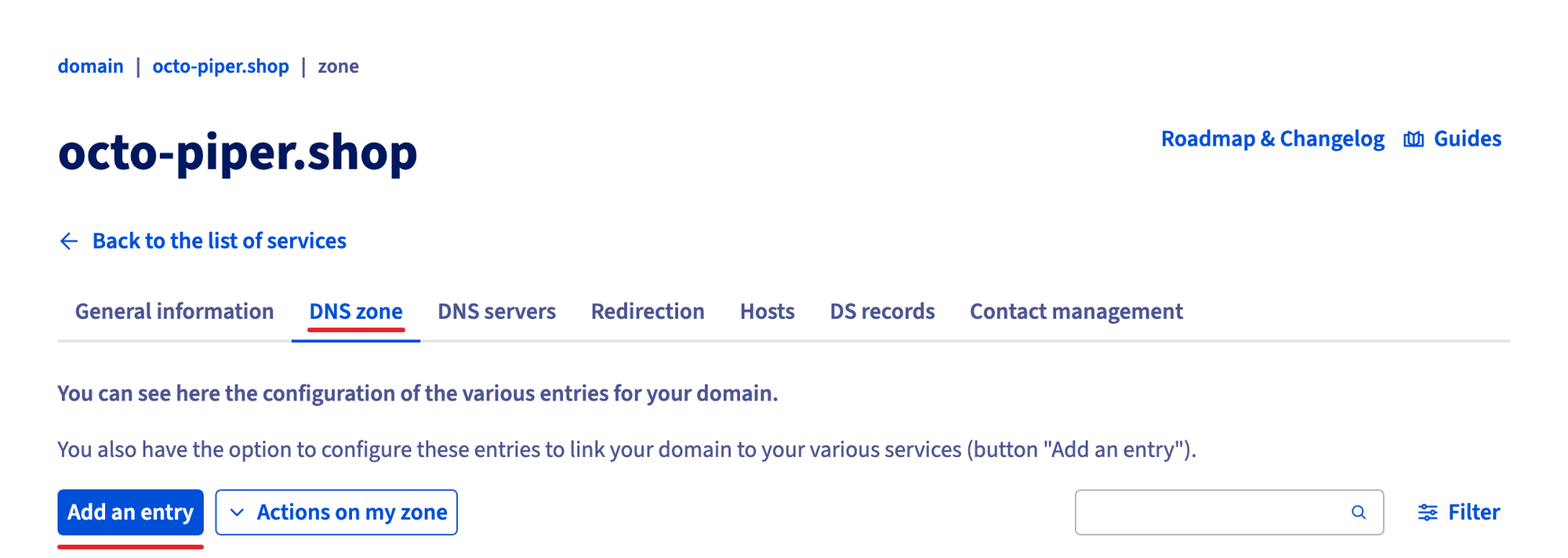
Click on "DNS zone". Then, click the "Add an entry" button.
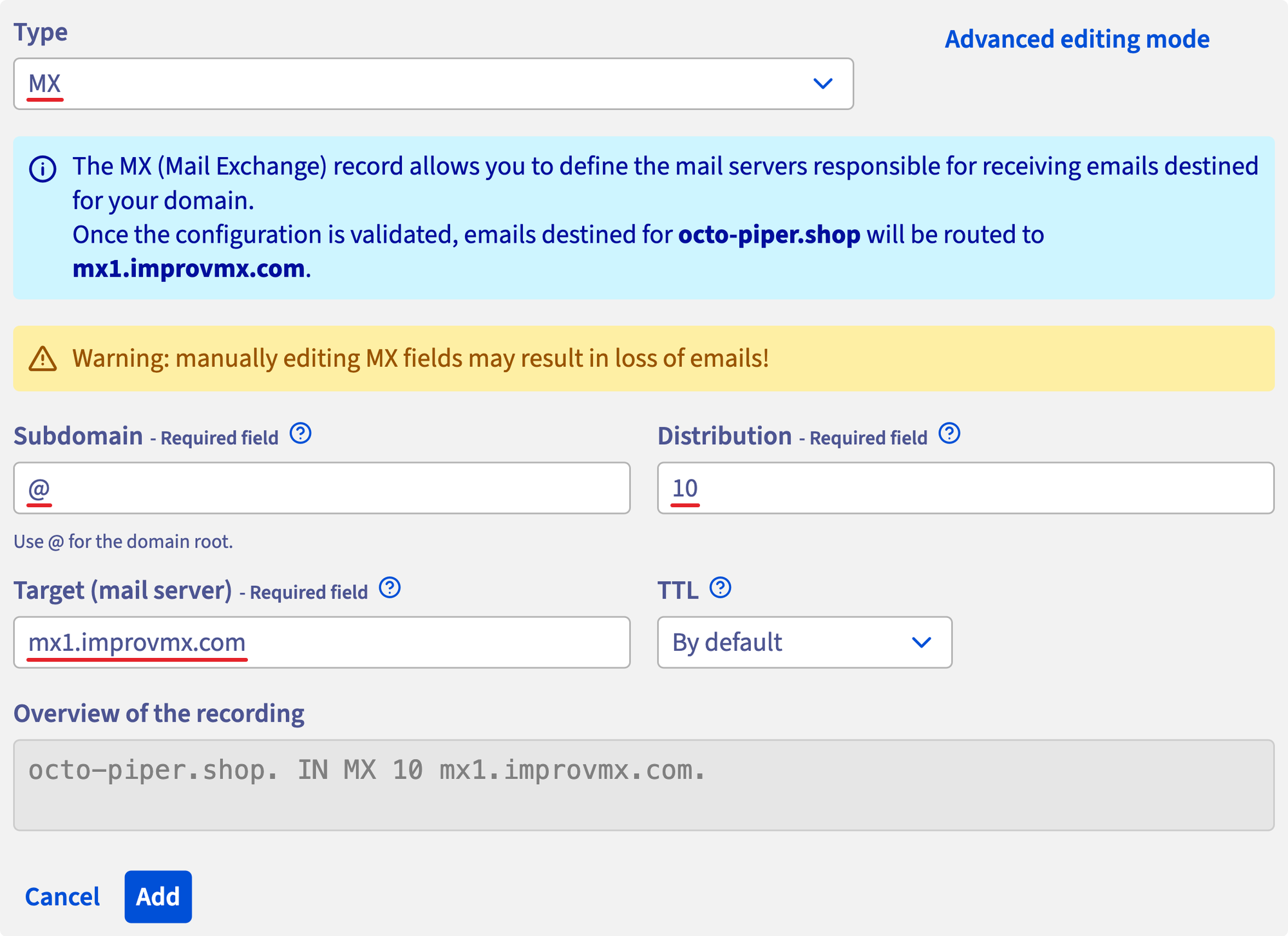
Fill in the fields as follows:
- Type - MX
- Subdomain - @
- Distribution - 10
- Target -
mx1.improvmx.com
Click "Add".
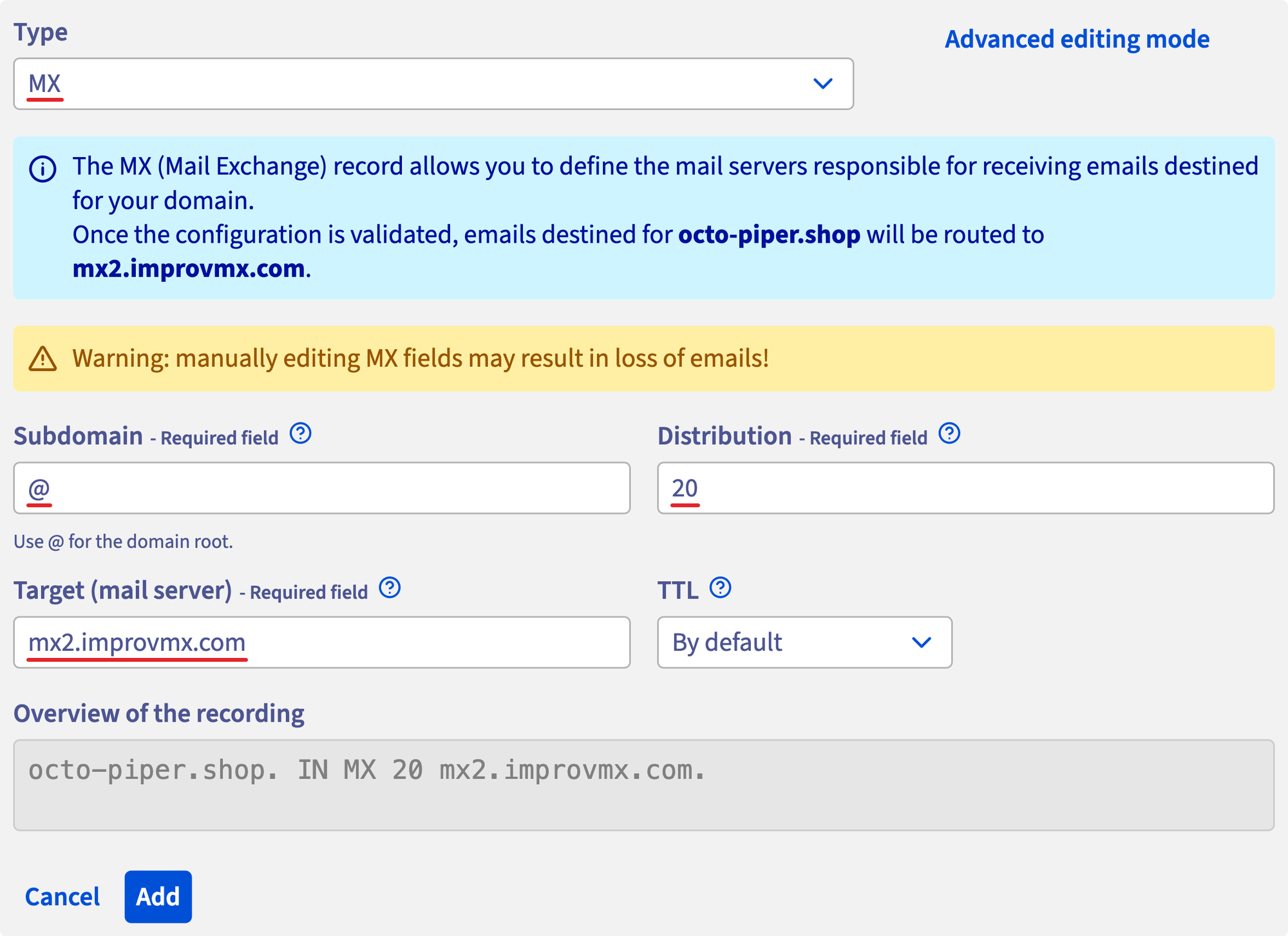
Click "Add Record". Repeat for the second MX record but:
- Distribution - 20
- Target -
mx2.improvmx.com
Click "Add".
3. Add SPF Record
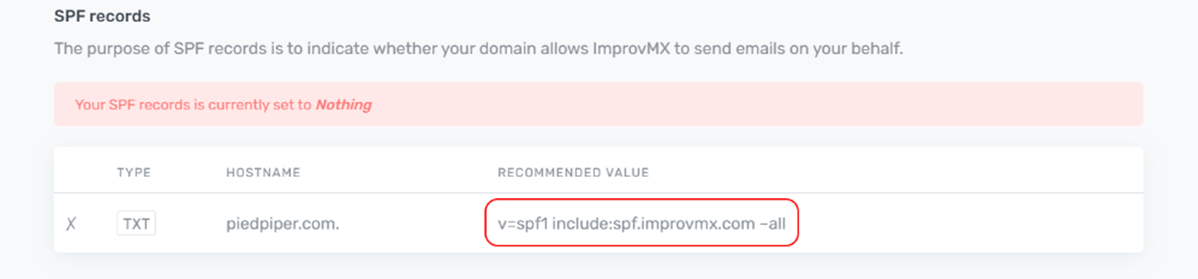
In the ImprovMX dashboard, find the SPF Records section and copy "Recommended Value".
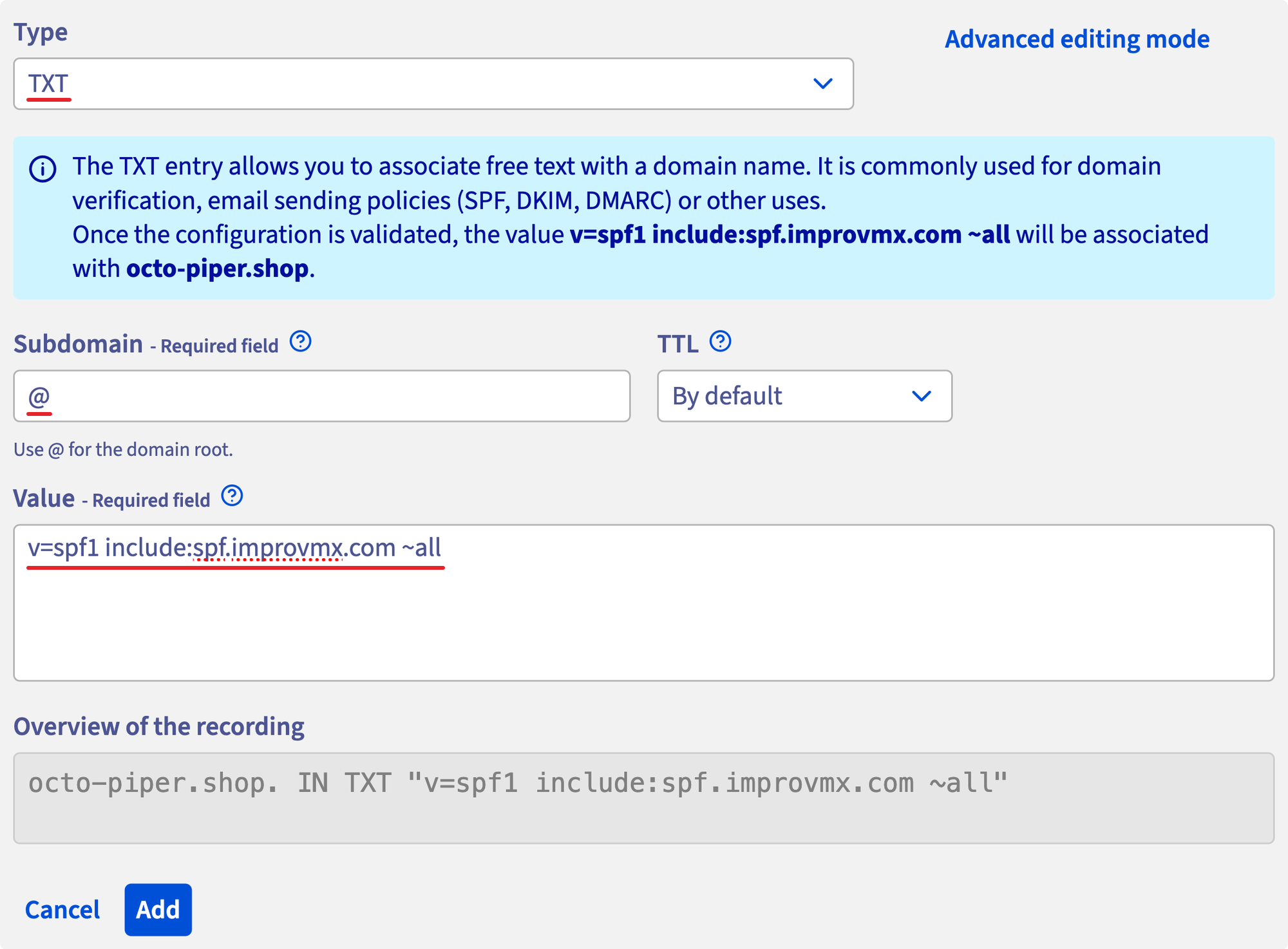
In OVH, click "Add an entry" again. Fill in the fields as follows:
- Type - TXT
- Subdomain - @
-
Value -
v=spf1 include:spf.improvmx.com ~all(or your recommended value)
Click "Add".
4. Verification
That's it! DNS changes can take up to 24-48 hours to propagate, but usually happen sooner. We'll notify you once detected. You can also click 'Check Again' on the ImprovMX dashboard to see if it's updated.
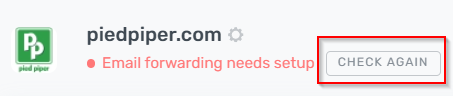
Domain will display "Email forwarding active" once DNS changes have propagated.

Still have questions? Feel free to reach out to our support team!