Send from Zoho Mail with ImprovMX SMTP
ImprovMX forwards your alias into Zoho, and Zoho sends back out through ImprovMX SMTP — so you send as [email protected] right inside Zoho. This guide sets up the sending half, outlined above.
Sending needs a paid plan.
Before you start:
- Your domain is verified in ImprovMX, with your alias created.
- An SMTP credential for that alias — keep its password handy.
- DKIM records added so your sends stay out of spam.
1. Add an external address in Zoho.
In Zoho Mail, go to Settings → Send Mail As → External From Addresses, click +, and choose Others as the provider.
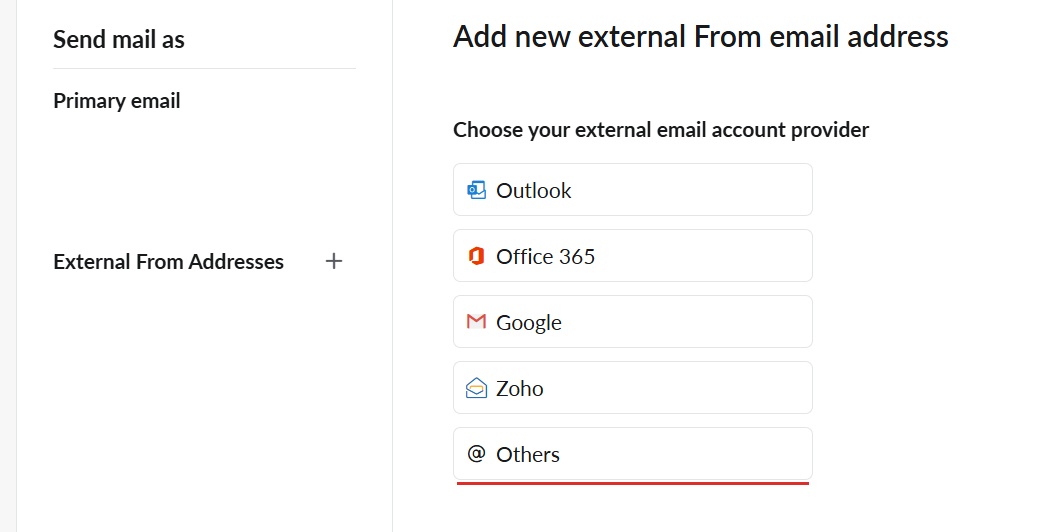
2. Fill in your alias and ImprovMX SMTP.
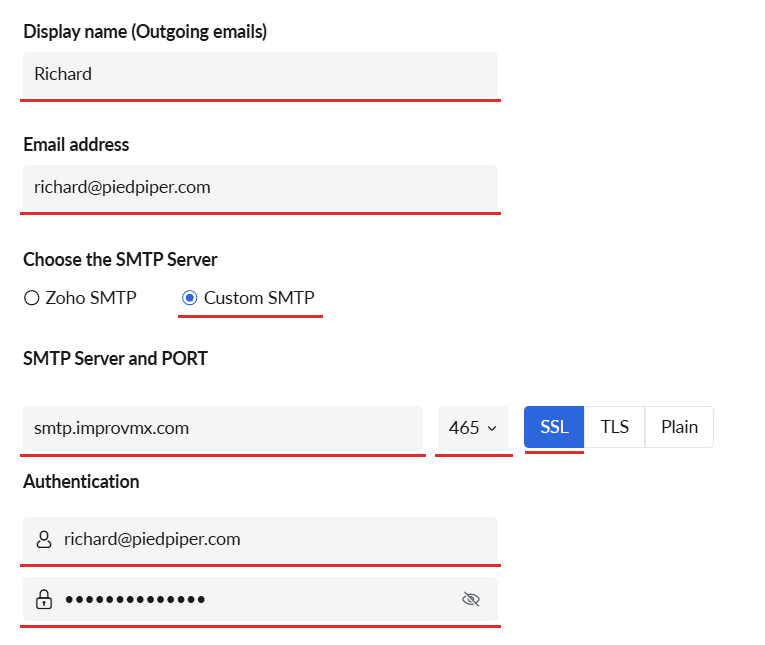
Set both Display name and Email address to your alias. Then under Choose the SMTP Server, pick Custom SMTP and enter:
| Field | Value |
|---|---|
| SMTP Server | smtp.improvmx.com |
| Port & security | 465 with SSL (or 587 with TLS) |
| Username | your alias, e.g. [email protected] |
| Password | the ImprovMX SMTP password for that alias |
3. Confirm the verification email.
Click Save. Zoho next sends a confirmation email to the alias,
which is likely forwarding to this Zoho account. Open it and click the link
to activate the alias for sending.
4. Send a test.
Compose a message, pick your alias in the From field, and send it to yourself.
Done — Zoho now sends as your ImprovMX alias. Using another client too? See our SMTP guides for Thunderbird, Gmail, and Apple Mail.